You are here: Correcting Flaws with Photo Editor > Changing Photo Colors > Pouring Paint onto a Photo
Pouring Paint onto a Photo
Use the Bucket Tool to pour paint onto an image.
To Pour Paint onto a Photo:
- In the Toolbar, under Create, click the Bucket Tool
 from the drop-down menu.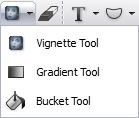
- Click the foreground
color in the Color Picker.

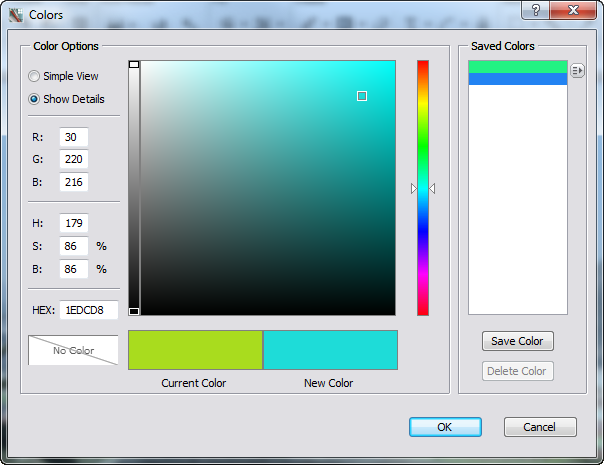
- Select the
paint color from the Colors dialog box.
- In the Properties bar, click the drop-down arrow
beside the Opacity box and drag
the slider to the left to reduce opacity or to the right to increase.
- In the Properties bar, from the Mode drop-down, select a blending option.
- In the Properties bar, click the drop-down arrow
beside the Tolerance box
and drag the slider to the left to reduce the number of pixels affected
and to the right to increase.
- Click on a
color in the photo that you want to replace with the new color. The paint
is poured over pixels with the same or similar color.