Using the Color Range Tool
The Color Range tool enables precise adjustments to specific colors within a photo, allowing you to selectively enhance or modify certain areas based on their color. Adjust the settings for the mask such as the Exposure, Saturation, Vibrance, Temperature, Tint, Fill Light, Contrast, Clarity, and Color Strength, as well as Color EQ, Tone Curves, and Sharpness in one or a series of color masks over the photo. For example, instead of adding Fill Light to an entire photo, add the fill light to certain areas, such as back-lit subjects.
Color Range Tool
The Color Range button  displays in the Masking Group of the Tune and Detail tabs.
To Use the Color Range Masking Tool:
- In Develop mode, in the Tune or Detail tab, click Masking, then Color Range in the Masking Group to open the control panel and enter Color Range mode.
- Specify the Color Range settings in the panel as described in the table below.
- Adjust the Color Range Controls to set the mask based on the color values selected.
- Adjust the sliders to get the effect you want.
- Press Save or Done.
To apply another mask, (up to 24 are available), click the + on the bottom left of the panel and select a masking option. A new icon (related to the type of mask selected) will appear in the Masks section. Your currently selected mask will be outlined in blue. You can reselect any of the masks at any given time by clicking its respective icon.
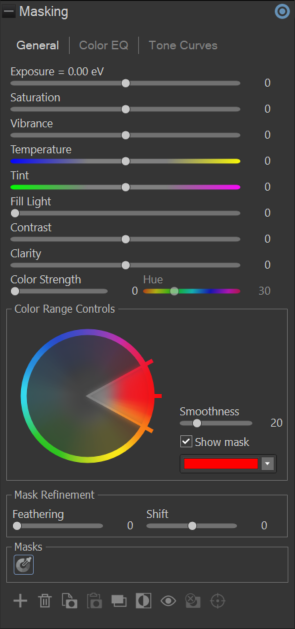
|
Color Range Controls |
|
|
Color Range |
Adjust the pixel color(s) to be masked. |
|
Smoothness |
Controls the degree of softening applied to the edges of a mask. This helps create a smoother transition between the masked and unmasked areas. |
|
Show mask
|
When this option is checked, your gradient mask will be displayed in the color shown. |
|
Mask Refinement |
|
|
Feathering |
Adjust the slider to control the softness of the transition between the brush strokes and the image. Use Ctrl + mouse wheel to adjust the amount of feathering or adjust the Feathering slider. |
|
Shift |
Adjust the edges of a mask by expanding or contracting them. Shifting the mask outward increases its coverage, making the masked area larger, while shifting inward reduces it's coverage, tightening the selection. |
|
Using the Color Range Masking Tool on the Details Tab |
|
|
Sharpness |
Move the Sharpness slider to the right to sharpen the area affected by the mask, or move the slider to the left to blur the area affected by the mask. |
|
Luminance Noise Reduction |
Reduces graininess or "noise" in the image by smoothing our variations in brightness (luminance) while preserving detail and texture. |
|
Color Noise Reduction |
Reduces unwanted color artifacts or "color noise" in an image by smoothing out random variations in color while maintaining overall image detail. |
