You are here: Edit Mode > Using Selections Tools > Using Selections
Using Selections
Use Selections to isolate an area of a photo in order to apply edits or filters to only that area, rather than the whole photo. There are five different selection tools and each selects an area of a photo in a unique way. The controls available change depending on which tool you select.
To Use a Selection Tool:
- In Edit mode, at the top of the panel, select the button for one of the following selection tools: Brush selection tool, Rectangular selection tool, Elliptical selection tool, Lasso selection tool, Magic wand selection tool. See below for more detailed steps for using these tools.
You can use Selections with the following Edit tools:
- Repair: Skin Tune
- Add: Vignette, Special Effects, Tilt-Shift, Drawing tools
- Exposure/Lighting: Exposure, Levels, Auto Levels, Tone Curves, Light EQ™, Dehaze, Dodge and Burn
- Color: White Balance, Color EQ, Color Balance, Convert to Black and White, Split Tone
- Detail: Sharpen, Blur, Noise, Clarity, Detail Brush
The Selection Tools
-
 Freehand Lasso: Click the left mouse button and drag the cursor to draw around the area that you wish to select. As you draw, a line appears showing where you have drawn. When you release the mouse, the end of the line joins to the start automatically to complete the selection. The whole selection animates and looks like marching ants.
-
 Magic Wand: Click on any area of the image and all the pixels the same color are included in the selection. You can choose whether to select only the same color pixels that are actually touching the one you clicked, or all the pixels in the photo that are similar. You can increase the threshold to include more pixels in the selection. The lower the threshold, the more similar a pixel has to be to the one clicked in order to be included. The greater the threshold, the more different a pixel can be and still be in the selection.
-
 Rectangular or
  Elliptical: Click and drag either a rectangle or an ellipse that begins where you first click and ends when you release the mouse.
-
 Brush: You can use the Brush selection tool to target your selection based on color, brightness, or a combination of both color and brightness. Select Color, Brightness, or Magic from the drop-down menu in the Context bar to define your selection. Then align the center of the brush with the color, brightness, or combination that you wish to target and begin brushing. You can increase the Tolerance to include a wider range of pixels in your selection. The lower the Tolerance, the more similar a pixel has to be to the one clicked in order to be included. You can erase the selection by right-clicking.
Overlay Options
You can customize the look of your selection based on the visualization best suited to your selection task.
To Customize the Selection Overlay:
- Choose Select | Overlay Options...
- In the Overlay Options dialog, select one of the following overlay options:
|
Marching Ants
|
This option outlines the selection with animated dashes.
|
|
Selection Highlighted
|
This option highlights your selection in the color of your choosing. Select a color from the drop-down menu. You can customize the transparency of the color overlay by using the Opacity slider.
|
|
Selection Exposed
|
This option highlights the non-selected areas of your image in the color of your choosing. Select a color from the drop-down menu. You can customize the transparency of the non-selected area by using the Opacity slider.
|
- Press OK.
Using the Selection Tools
To Use the Lasso:
- Select the Lasso button.
- On the image, click and hold down the left mouse button as you draw around the area you want to select.
- Release the mouse button to complete the selection.
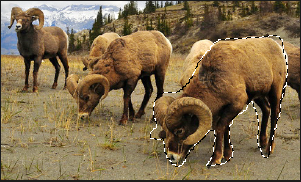
- To clear the selection, click anywhere on the image (for the Lasso , Rectangular, or Elliptical selection).
- To add to an existing selection, hold down SHIFT, or press the Add to selection button in the Context bar, and draw a shape that includes any part of the original selection line.

When you release the mouse, the original selection expands to include the outer edge of your addition.
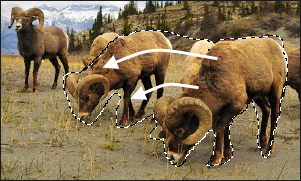
- To add multiple areas into your selection, hold down SHIFT, or press the Add to selection button in the Context bar and draw around any part of the image.
As long as you do not touch the line of any other selection, you can add several separate areas to a selection.

- To subtract from a selection, hold down CTRL, or press the Subtract from selection button in the Context bar, and draw a shape that includes part of the original selection, or encircles it completely.

- If you wish to apply edits or effects to the outside areas of the image, you need to click Select | Inverse to reverse the selected area.
Now the selection includes all the outside areas of the image with the central area outside the selection.
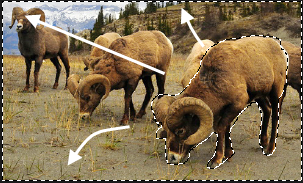
You can preview the selection mask by holding down the Preview button: 
You can select an editing tool or a special effect to apply to the selection.
To Use the Magic Wand:
- Select the Magic Wand button.
- Click any color in the image.
- Do any of the following:
- Slide the Threshold slider to adjust the number of pixels to be included or excluded. The Threshold slider sets how similar a pixel needs to be to the one you clicked in order to be included in the selection.
- Click the Connected checkbox if you want to include only pixels that are touching the one you clicked.
- Hold down SHIFT and click around the selection to include more pixels.
- Hold down CTRL and click around the selection to remove pixels from the selection.
- From the Wand type drop-down list, select one of the following:
You can preview the selection mask by holding down the Preview button:
You can select an editing tool or a special effect to apply to the selection.
To Use the Rectangular or Elliptical Selection Tool:
- Select either Rectangular or Elliptical button.
- Click and drag to draw the selection on the image.
- Do any of the following:
- To add to an existing selection, hold down SHIFT and drag another selection that includes any part of the original selection line. Release the mouse and the selection now includes the additional area.
- To add multiple areas to your selection, hold down SHIFT and drag as many as you want. As long as none of the edges touch, you can continue adding areas to the selection.
- To subtract from an existing selection, hold down CTRL and drag another selection that intersects with the one you want to reduce. Release the mouse and any part that was inside the new selection is removed.
You can preview the selection mask by holding down the Preview button:
You can select an editing tool or a special effect to apply to the selection.
To Use the Brush Selection Tool:
- Select the Brush Selection button.
- Select an option from the Smart Brushing drop-down menu:
|
Color
|
Selects pixels based on how similar they are to the color value of the pixel in the center of the brush, depending on the Tolerance setting.
|
|
Brightness
|
Selects pixels based on how similar they are to the brightness value of the pixel in the center of the brush, depending on the Tolerance setting.
|
|
Magic
|
Selects pixels based on how similar they are to the combination of the color and brightness values in the center of the brush, depending on the Tolerance setting.
|
- Use the Tolerance slider to increase or decrease the range of pixels selected.
- Place your cursor over the color or brightness you wish to select, and click and/or drag on the image to create a selection.
To remove areas from your selection, right-click and drag over the area you want to deselect.
To use the brush as a regular selection tool, hold down SHIFT while brushing.
You can select an editing tool or a special effect to apply to the selection.
You can right-click a slider to reset to the default value.
Combining the Tools
You can use the Selection tools separately or in combination. For example, you can use the Magic Wand to select most of a particular color, then switch to the Freehand Lasso to add to, or subtract from, the selection. Or you could use the Rectangular selection to select a large general area, then refine it using the Freehand Lasso.
To Combine Selection Tools:
- Choose a tool and make a selection.
- Switch to another tool.
- Press the Add to selection button.
- Make another selection.
Saving Selections as Presets:
You can save your settings as a preset for future use. After you have made a selection, click Select | Save Selection...
To use a previously saved selection, click Select | Load Selection...
To delete a saved selection, click Select | Manage Selections...
To Cut and Paste Selections:
- Make a selection.
- Do one of the following:
- Press Ctrl + C or Ctrl + X.
- Do one of the following:
Your selection will paste onto a new layer above the selected (active) layer in the Layered Editor.
To Delete Selected Pixels:
You can delete selected areas of images or masks. To retrieve your deleted pixels, use the Undo button.
- Make a selection.
- Click Select | Delete Selected Pixels.
You can also delete pixels by pressing ALT + DELETE.
To Create a Layer Mask from a Selection:
See Using Masks with Layers.
To Add or Subtract a Mask from a Selection:
See Using Masks with Layers.
To Intersect a Mask with a Selection:
See Using Masks with Layers.
See Also: