ACDSee Home Page
The ACDSee Home Page appears by default when you launch the program. This behavior can be changed in the Startup Options. The Home Page provides quick and easy access to searches and key functions, making it simple to start working on your projects.
Browsing folders or running searches will open in a new tab. For more information, see Browsing with ACDSee Tabs.
There are three areas to the ACDSee Home Page:
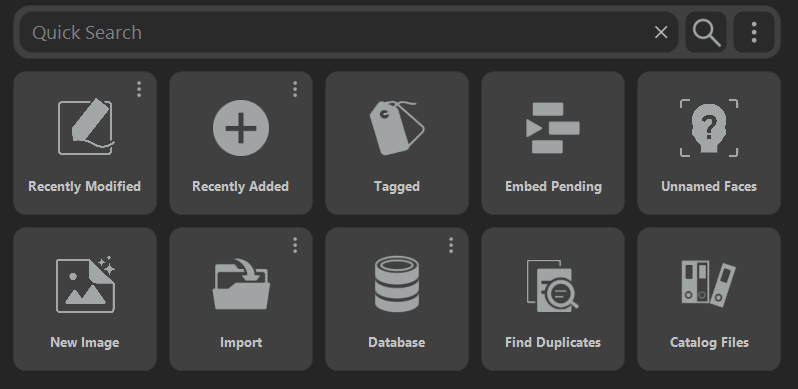
Quick Search Bar
Use the Quick Search Bar at the top of the Home Page to quickly locate files or folders. You can refine or expand your search using the Quick Search options and view the results in the File List pane.
There are three ways to control the Quick Search Bar:
- Clearing Text: Quick Search allows you to type in your search criteria. Clicking X will remove the text currently in the Quick Search bar.
- Starting Search: Click the magnifying glass or press the Enter key.
- Adjusting Search Parameters: Use the options menu ⫶ to set the search parameters.
For more information, see Using the Quick Search Bar.
Search Buttons
The Home Page includes five predefined searches for quick access:
- Recently Modified: Displays files modified within the last week by default. This search uses the Windows Recently Modified field.
- Recently Added: Displays files added within the last week by default. This search uses Date Taken by default, or can be changed to Date Added to Database in the Home Page options.
- Tagged: Displays files that have been tagged. For more information, see Tagging Images.
- Embed Pending: Displays files with ACDSee Metadata applied that has not yet been embedded. For more information, see Embedding ACDSee Metadata in Files.
- Unnamed Faces: Displays files that contain detected faces without assigned names. For more information, see Detecting Faces in Manage Mode.
The timeframe for Recently Modified and Recently Added files can be adjusted using the option menu ⫶ in the upper-right corner of the button, or in the ACDSee Home Page options.
Action Buttons
Below the search buttons, the Home Page includes five action buttons:
- New Image: Opens a dialog where you can set parameters for a new image. For more information, see Creating a New Image.
- Import: Opens the Import Window for adding images. Use the Options menu ⫶ to select a source such as device, scanner, disk, or CD/DVD to import from. For more information, see Importing Files with ACDSee.
- Database: Opens the Back Up Database dialog by default, or can be changed to open either the ACDSee Database Optimization Wizard, or the Database Maintenance window by changing the setting in the Options menu ⫶. For more information, see Backing Up Your Database, Optimizing the Database and Maintaining the Database.
- Find Duplicates: Opens the Duplicate Finder dialog, allowing you to locate duplicate files in your database. For more information, see Finding Duplicate Files.
- Catalog Files: Opens the Catalog Files dialog for cataloging new files. For more information, see Cataloging Files in the Database.
Import will only run based on which Import Source you've selected.