AI Face Edit
Using ACDSee Ultimate's AI Face Edit tool, you can make fine-tuned adjustments to a variety of facial features.
You can save your settings as a preset for future use.
To Use AI Face Edit:
Click on AI Face Edit under the AI section of the Filter Menu on the left, or press Ctrl + Alt + G. This will load face data that you can adjust.
Press the + to expand and - to collapse a group. Use the sliders within a group to make adjustments to each feature.
| Feature | Description |
|---|---|
|
Face |
|
| Face Width |
Widens or narrows the face. |
| Jawline |
Adjusts the definition of the jawline. |
| Jaw Length |
Lengthens or shortens the jaw. |
| Chin Size |
Enlarges or reduces the chin. |
| Forehead |
Increases or decreases the height of the forehead. |
| Cheekbones |
Adjusts the prominence of the cheekbones. |
|
Eyes |
|
| Size Left |
Enlarges or reduces the left eye. |
| Size Right |
Enlarges or reduces the right eye. |
| Height Left |
Increases or decreases the height of the left eye. |
| Height Right |
Increases or decreases the height of the right eye. |
| Width Left |
Widens or narrows the left eye. |
| Width Right |
Widens or narrows the right eye. |
| Spacing |
Moves the eyes closer together or further apart. |
| Direction Horizontal |
Shifts the position of the eyes horizontally. |
| Direction Vertical |
Shifts the position of the eyes vertically. |
| Sharpen |
Sharpens detail in the eyes. |
| Whitening |
Brightens the whites of the eyes. |
|
Next to some of the features under Eyes, such as Size Right and Size Left, you'll notice a chain-link icon. Selecting this locks left and right options together to ensure that any adjustment made to one side will be symmetrically applied to the other side. |
|
|
Eyebrows |
|
| Inner Length Left |
Extends or shortens the inner end of the left eyebrow. |
| Inner Length Right |
Extends or shortens the inner end of the right eyebrow. |
| Outer Length Left |
Extends or shortens the outer end of the left eyebrow. |
| Outer Length Right |
Extends or shortens the outer end of the right eyebrow. |
| Thickness |
Thickens or thins the eyebrows. |
| Tapering |
Adjusts how sharply the eyebrows narrow toward the outer ends. |
|
Nose |
|
| Height |
Lengthens or shortens the nose. |
| Width |
Widens or narrows the nose. |
| Tip Length |
Extends or shortens the tip of the nose. |
| Tip Width |
Widens or narrows the tip of the nose. |
| Contouring |
Adds shading to define the shape of the nose. |
|
Mouth |
|
| Smile |
Turns the corners of the mouth up or down. |
| Whiten Teeth |
Brightens the teeth. |
| Upper Lip Thickness |
Adjusts the fullness of the upper lip. |
| Lower Lip Thickness |
Adjusts the fullness of the lower lip. |
|
Hair |
|
| Color Wheel |
Selects a color to apply to the hair. |
| Limit to natural hair colors |
Restricts the color wheel to a range of natural hair colors. |
| Temperature |
Shifts the hair color warmer or cooler. |
| Tint |
Shifts the hair color between green and magenta. |
| Saturation |
Increases or decreases the intensity of the hair color. |
| Shadows |
Adjusts the darkest tones in the hair. |
| Midtones |
Adjusts the mid-range tones in the hair. |
| Highlights |
Adjusts the lightest tones in the hair. |
| Sharpness |
Sharpens detail in the hair. |
|
Skin |
|
| Smooth Wrinkles Left |
Softens wrinkles on the left side of the face. |
| Smooth Wrinkles Right |
Softens wrinkles on the right side of the face. |
| Smooth Crow's Feet Left |
Softens the fine lines at the outer corner of the left eye. |
| Smooth Crow's Feet Right |
Softens the fine lines at the outer corner of the right eye. |
| Smoothing |
Softens the overall texture of the skin. |
| Glow |
Adds luminosity to the skin. |
| Splotch Removal |
Blends out blemishes and uneven patches of skin tone. |
|
Makeup |
|
| Lip Saturation |
Increases or decreases the intensity of the lip color. |
| Lip Hue |
Shifts the color of the lips. |
| Blush |
Adds color to the cheeks. |
| Upper Eyeshadow |
Adds color above the eyes. |
| Lower Eyeshadow |
Adds color below the eyes. |
Editing Multiple Faces in One Image
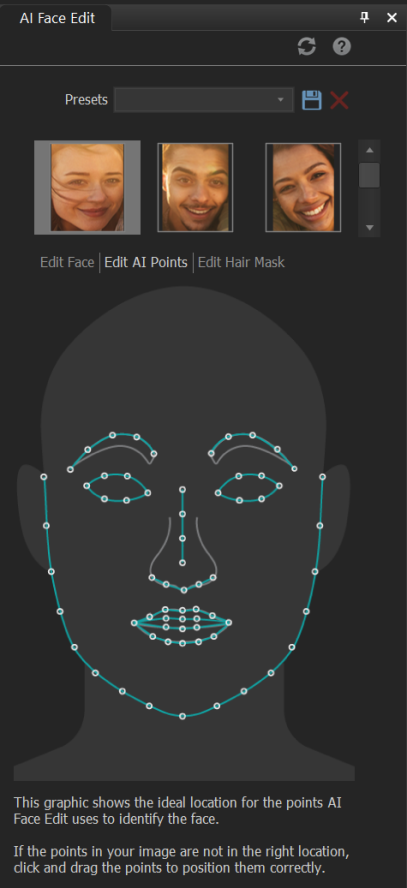
When more than one face is detected, each instance is displayed in the AI Face Edit pane at the top. Click between the faces displayed to quickly switch the focus to a different face. Sliders are locked to whichever face is selected, ensuring that you won't accidentally make any edits to someone you don't mean to.
Adjusting Face Data
AI detects points on a face to identify facial features in the image. These points may not be in the correct position. To fix this, click on the Edit AI Points tab. This tab shows a graphic with the ideal locations for the points. Follow the graphic to manually click and drag to adjust the points to the ideal locations.
If face data is not available, then an error message will appear: Failed to detect any faces. If you encounter this error, please try another image.
Editing Hair Masks
When AI Face Edit detects a face, it automatically masks the subject’s hair for editing. You can adjust this mask by clicking Edit Hair Mask below Presets in the AI Face Edit tool. This opens the hair mask editor, where you can view existing masks, brush on new ones, modify current masks, or erase unwanted areas or entire masks.