Adjusting Color With Color EQ
Color EQ makes color adjustments for Saturation, Brightness, Hue, and Contrast. Make adjustments to the entire image in Standard mode using the vertical slider, or adjust on a color by color basis in Standard or High Quality mode. For an explanation of the controls, see below.
Settings can be set as a preset for future use.
To adjust color:
- In the Develop Tools pane, select the Tune tab.
- In the Color EQ group, select the Saturation, Brightness, Hue, or Contrast tab, and adjust them according to the options described in the table below.
Right-click a slider to reset to the default value.
Color EQ Options
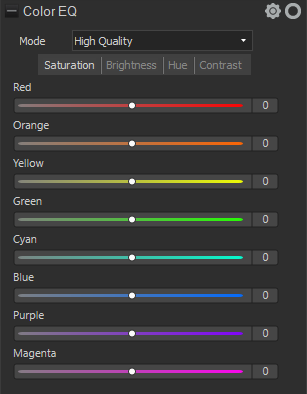
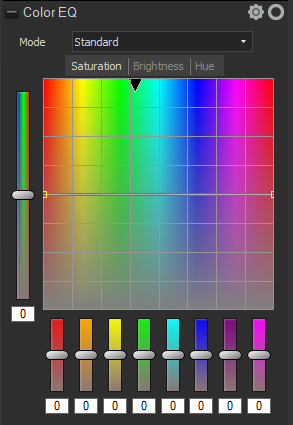
Select High Quality mode or Standard mode from the Mode drop-down menu. To adjust colors individually, left-click a color in the image and drag up or down to alter. The changes are reflected in the Saturation, Brightness, Hue, and Contrast tabs color sliders in High Quality mode and the graph in Standard mode, respectively. This works in the Saturation, Brightness, Hue, and Contrast tabs.
|
High Quality |
|||
|
|
Adjust image colors individually. High Quality uses the newer, more modern color models, allowing for a visually perceptive and higher quality adjustment. |
||
|
Adjust each color individually by dragging sliders right for more intensity, or left for less intensity. Or, enter a number into the fields for precise adjustments. Select a precise color to adjust by placing the cursor on the image for the double arrow icon to appear. Then, click and drag up or down to adjust the colors beneath the double arrow icon. The affected color sliders automatically adjust as the cursor is moved. |
|||
|
Standard |
|||
|
|
Supports previously developed images. Adjust colors individually or make global adjustments. |
||
|
Vertical slider
|
Apply adjustments to the entire image. A slider on the left has the following effects on the tabs:
Or, enter a number into the field for precise adjustments. |
||
|
Individual color sliders
|
Adjust each color with individual sliders. Select the color to adjust and click and drag the sliders. Or, enter a number into the fields for precise adjustments. |
||
|
Direct image adjustments
|
Place the cursor on the image for the double arrow icon to appear. Then click and drag up or down to adjust the colors beneath the double arrow icon. The curve control and the affected color sliders automatically adjust as the cursor is moved. The black down arrow on the graph indicates the color being adjusted in the image. The curve appears black in the graph, and cannot be directly adjusted. To apply further adjustments, alter the white curve. When adjusting the white curve, the black curve automatically changes with it. Or, enter a number into the fields for precise adjustments. |
||