Customizing the LUXEA Pro Video Editor 7 Interface
When using LUXEA Pro 7, you have complete control over the layout. All panels are equipped with the ability to dock and undock from one another, allowing you to set up your workspace exactly the way you like it, even having panels set outside of the confines of the program window itself. Placement is saved, so when the program is reopened, your panels and items will be right where you left them.
Moving a panel:
Click and hold the left mouse button over whichever panel you would like to move  . Once held, drag the tab to its desired new location. This can be within the same section of panels, a different section of panels, its own new area within the window, or off the window entirely.
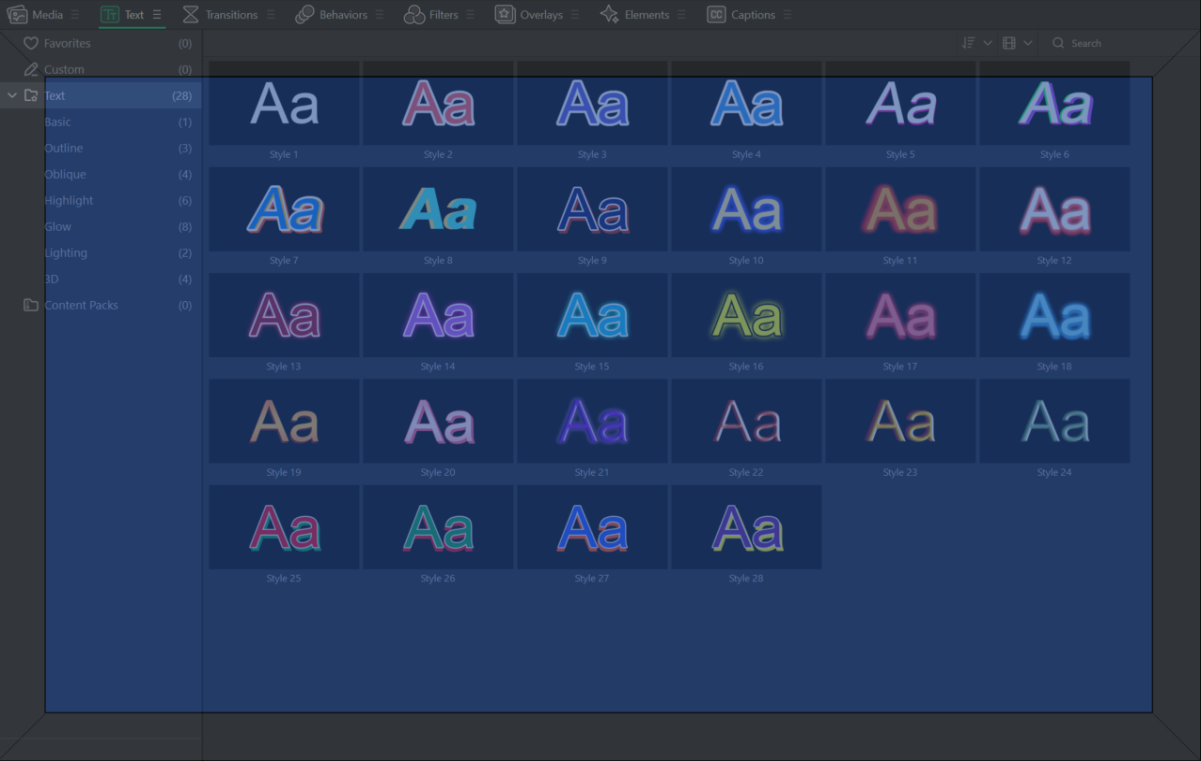
When you begin dragging, you'll notice sections of the window highlight in blue. Each area has a top, bottom, left, right, center, and upper-most tab area that will highlight. Dropping the panel on any side will dock the panel alongside the one currently displayed, or dropping the panel in the center or the upper-most tab area will allow you to tab between the panels that have been stacked.
Panels can be resized by clicking on an edge and dragging to increase, or decrease the space as needed.
Undocking a panel:
There are two ways to undock a panel, allowing it to free-float outside of the window:
- Click the triple bar (also known as the Hamburger menu) button to the right of the panel name
 , and select "Undock Panel"
- This will release the panel from being locked against other panels, and allow the panel to be moved as if it were its own window.
- Click and hold the left mouse button over whichever panel you would like to move. Once held, drag the tab to its desired new location. If that location is out of the program window, it will automatically transition into an undocked window.
Docking a panel:
Once a panel has been undocked, it can be docked back to the program:
To dock a panel, click and drag the panel back into the application, and let go of it over your desired location. The blue highlights that appear indicate locations where a panel can be re-docked.
Resizing Panels:
Panels and groups of panels can be resized. Align the mouse cursor with a line dividing two panels, and click to drag and resize the panels to your preferred parameters.
Closing and Reopening Workspace Panels:
Panels can be closed and reopened at any time.
To close a panel, click the Triple Bar button to the right of the panel, and select Close Panel from the menu. Alternatively, undock the panel and an X will be displayed in the top-right corner like any standard program. Clicking the X will also close the panel.
To open a panel, click the Window menu option at the top and select the panel you would like to reopen from the list. All currently open panels will display with a check mark to the left of the panel name. Panels currently closed will display without the check mark. Clicking on an unchecked panel will reopen it, setting a check mark next to the name again.
Saving, Applying, and Managing Workspaces
When you've customized your workspace to your liking, you can save the layout. Multiple layouts can be saved and quickly applied for any part of your workflow.
To Save a Workspace:
To save a Workspace, click Window and select Save Workspace. Enter a name for the Workspace and click OK.
To Apply a Workspace:
To apply a Workspace, click Window, and mouse over Apply Workspace. Select the Workspace you would like to apply to the program.
To Manage Workspaces:
To manage saved Workspaces, click on Window and select Manage Workspaces.
In the Manage Workspace window that appears, you'll see a list of all of your saved Workspaces. Here you can reorder Workspaces by dragging them into your desired order, and rename or delete them by selecting the Workspace and pressing Rename or Delete at the bottom.
Press OK to close the window.
Searching for Media files:
When in the Media panel, the top right corner of the window has a Search bar. Use the search bar to quickly narrow down your options based on search criteria.
Changing Thumbnail Size:
Thumbnails in the Media panel can be adjusted to be viewed in 3 different sizes, Small, Medium, and Large.
To change the thumbnail size, click the movie reel icon directly to the left of the Media panel search, and select between List View, Small Thumbnail View, Medium Thumbnail view, and Large Thumbnail view.
Sorting Files:
To the left of both the search and thumbnail dropdown menus you’ll find the Sort and Group by dropdown. Click on the button and select Sort by to view the submenu.
Sort By includes:
- File Name
- Media Type
- Duration
- Modified Time
Grouping Files:
To the left of both the search and thumbnail dropdown menus you'll find the Sort and Group by dropdown. Click on the button and select Group by to view the submenu.
Group By includes:
- None
- File Type
- Modified Time
- Duration
Grouping and Sorting can both be done in ascending and descending order.
Adding Favourites:
Media assets found in any sample folder, or downloaded through content packs can be favorited by clicking the heart icon in the top-right corner of the thumbnail. Favorites can be viewed in the Favorites folder found in each panel's file tree.
Timeline Track Selection
Click on a track in the Timeline to select the entire track. By selecting a track, you can quickly perform large-scale changes such as:
|
Options |
Description |
|
Remove Track |
Removes selected track |
|
Remove All Empty Tracks |
Removes all tracks on the Timeline that have no media in them |
|
Insert Track |
Allows you to input a new track above or below the selected track |
|
Rename Track |
Renames the selected track |
|
Select All Media on Track |
Selects all media files on the Timeline in the selected track |
|
Close Gaps on Track |
Removes any gaps in between media files placed on the selected track |
|
Disable Track |
LUXEA will ignore disabled tracks without the need to remove the media files. Use this to quickly turn on or off entire tracks |
|
Lock Track |
Locking the track will prevent any changes from occurring. Use this to prevent unwanted changes from appearing. |
|
Move Up |
Moves the track up one on the Timeline view |
|
Move Down |
Moves the track down one on the Timeline view |
|
Minimize Track |
Condenses the height of the track to minimum |
|
Maximize Track |
Expands the height of the track to maximum |