Using Motion Tracking
Overview
Motion Tracking allows you to track the movement of a subject or object within a video clip using AI. Once tracking is complete, you can have objects—such as text, elements, filters, videos, images, and nest sequences—follow the track throughout the video. This is useful for emphasizing moving subjects, adding context-aware annotations, censoring objects with Mosaic, and more.
Applying Motion Tracking
Step 1: Enabling Motion Tracking
- Select a clip on the Timeline.
- In the Properties Panel, open the AI Tools sub-tab.
- Toggle Motion Tracking to On.
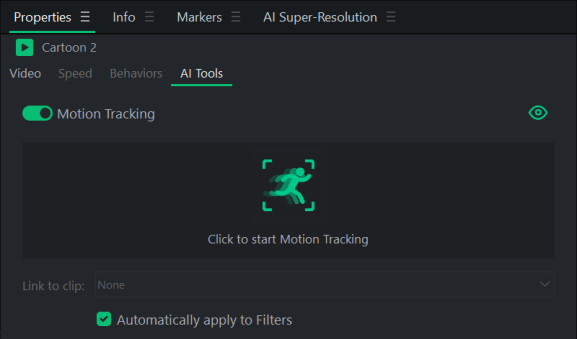
Step 2: Defining the Tracking Target
- In the Preview Window, a Tracking Box with a + at the center appears.
- Drag the boundary box over the desired subject or object.
- Adjust the edges of the Tracking Box to ensure it closely fits the target area/subject.
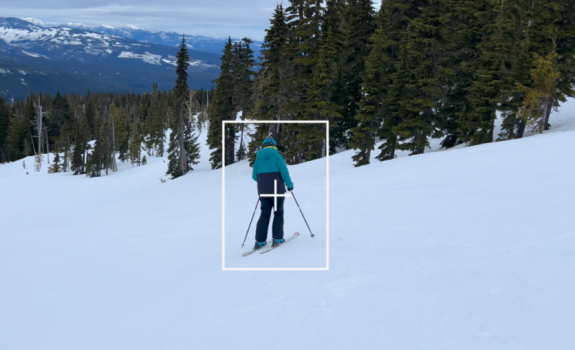
The Tracking Box should fit closely around the subject it's following. It may need to be readjusted throughout the video depending on if the subject changes sizes throughout the video. For more information on making adjustments, see Making Adjustments to the Tracking Box below.
Step 3: Start Motion Tracking
Once the box is in place, click the green Start Motion Tracking button.
- The software will begin analyzing the Clip.
- When finished, the gray bar on the Timeline turns green, showing where the tracking has been applied.
Optional Step: Applying Filters to Motion Tracking
If you would like to have Filters applied to your Motion Tracking, select the checkbox Automatically Apply to Filters.
Only Filters with a moving component, such as Aqua Glass or Tunnel, will actively follow the motion tracking. For more information, see Automatically Applying Filters to Motion Tracking.
Making Adjustments to the Tracking Box
You can change the tracking area partway through a Clip:
- Move the Playhead to the desired frame.
- Adjust the Tracking Box to a different position.
When you do this:
- A red dot appears where the tracking was interrupted.
- The rest of the green bar turns gray, meaning that section will need to be tracked again.
To continue:
- With the Playhead at the red dot, click the Track from Here button to resume Motion Tracking.
Linking Motion Tracking to Assets
Any Clip, Text, Element, Image, or Nest Sequence positioned on a timeline track above a motion-tracked clip is eligible for linking. Once a clip is correctly layered, it will populate the Link to Clip dropdown menu within the AI Tools sub-tab.
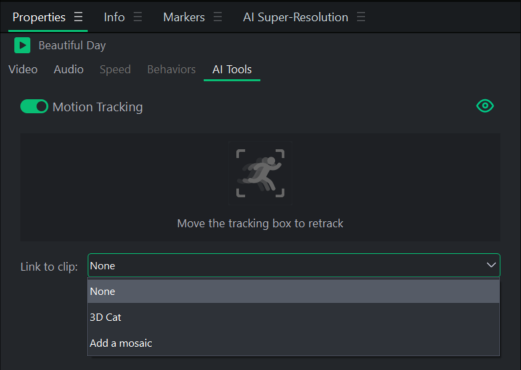
Selecting an asset from this menu synchronizes its position with the analyzed motion tracking data. The linked asset will then automatically follow the spatial path and transformations defined by the Tracking Box.
Automatically Applying Filters to Motion Tracking:
The Automatically apply to Filters checkbox synchronizes filter effects with analyzed tracking data. When enabled, any compatible filter applied to the motion-tracked clip will automatically follow the path defined by the Tracking Box.
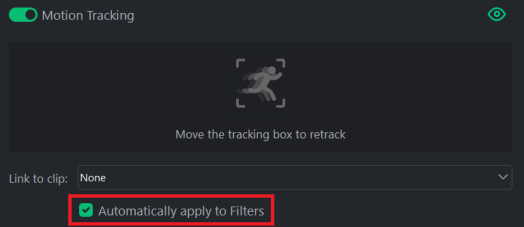
The following filters are compatible with motion tracking data:
- Aqua Glass
- Circle Magnifier
- Crop Tool Magnifier
- Dash Magnifier
- Diamond Mosaic
- Polaroid Magnifier
- Radial
- Radial Blur
- Tunnel
The Automatically apply to Filters option is enabled by default and can be changed in the Options menu. See Options and Configuration for more information.