Using the Radial Gradient Tool
While the Develop tools allow you to make a variety of adjustments to your photos, sometimes you want these effects to draw attention to a specific area of your photo. You can adjust the Exposure, Saturation, Fill Light, Contrast, Clarity, Sharpness, Vibrance, Temperature, Tint, Color Strength, and Hue in one or a series of gradients over your photo. For example, instead of applying sharpening across an entire photo, you may want to only sharpen the center subject.
You can save edits you make with the gradient tool as a preset for future use.
To Use the Gradient Tool:
- In Develop mode, on the Tune or Detail tab, click the Radial Gradient button at the top of the pane to open the control panel and enter radial gradient mode. Or, toggle the radial gradient panel open and closed with the R key.
- Specify the radial gradient settings in the panel as described in the table below.
- Position the guides on your photo. Inside the circle, the image is unaltered. At the perimeter of the circle, the effect being applied by the Radial Gradient tool is transitioning between not applied at all (inside), and full strength (outside). To make this clearer, check the Show gradient mask checkbox. Move the guides to define where the effect will begin or end. Hold down the Shift key while positioning the effect to change the radial gradient to a perfect circle. Hold down the Command key while using the Gradient Tool to activate the pan feature.
- Adjust the sliders to get the effect you want.
- Press Save As or Done.
To apply another mask, (up to 24 are available), click the + on the bottom left of the panel and select a masking option. A new icon (related to the type of mask selected) will appear in the Masks section. Your currently selected mask will be outlined in blue. You can reselect any of the masks at any given time by clicking its respective icon.
To convert a Radial Gradient mask into a brush mask, right-click on the Radial Gradient mask at the bottom of the masking pane, and select Convert to brush mask.
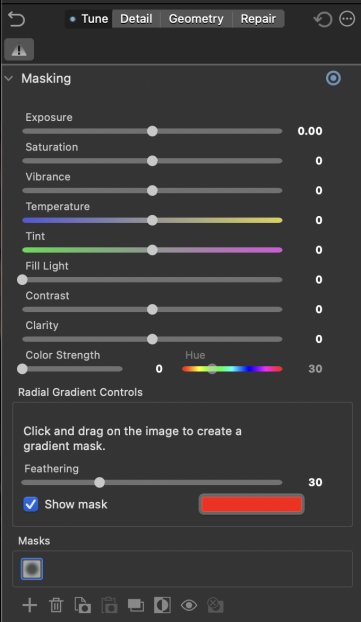
Gradient Tool Options
|
Feathering |
Adjust the slider to control how gradual the transition of the edge of the gradient will be. |
|
Show gradient mask |
When this option is checked, your gradient mask will be displayed in the color shown. Alternatively, hold down the S key to see the mask on the image. |

Double-click the + at center of the guides to expand the radial gradient to fill the entire width of the image.
Masking Toolbar
At the bottom of the Masking group is the Masking Toolbar. This includes options for:
|
Add a new mask |
Brings up a menu to select a new mask type to apply. |
|
Delete the currently selected mask |
Deletes the currently selected mask. |
|
Copy the currently selected mask |
Copies the currently selected mask. |
|
Paste mask |
Pastes the currently copied mask. |
|
Duplicate the currently selected mask |
Creates a duplicate mask of the currently selected mask. |
|
Invert the currently selected mask |
Inverts the currently selected mask. |
|
Enable/Disable the currently selected mask |
Enable or disable the ability to see the currently selected mask. |
|
Clear the currently selected mask |
Deselects the currently selected mask. |