Adjusting Color With the Color Wheel
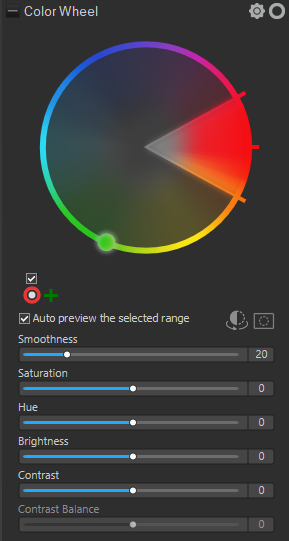
In the Develop Tools pane and the Editor, use the color wheel to adjust precise colors in an image. The Color Wheel changes a precise color's saturation, hue, brightness, contrast, and contrast balance. The Color Wheel also adjusts smoothness, which acts like a feathering tool to soften a color's edges. The Color Wheel is particularly useful for common requests like making a blue sky more blue, or brightening dark water that is meant to depict a bright lake.
To adjust color using the Color Wheel:
- Open the Color Wheel using one of the following options:
- In the Develop Tools pane, navigate to the Color Wheel group under the Tune tab.
Note: To use the Color Wheel in the Develop Tools pane, under the Tune tab expand the Color EQ group and set the Mode drop-down to "High Quality".
- In the Develop Tools pane, navigate to the Color Wheel group under the Tune tab.
- Choose a color to edit by clicking and dragging the section of the color wheel around, or by using the eyedropper on the image itself. In the eyedropper, a dot, known as the hue indicator, moves around the wheel to show where the color being hovered over sits on the wheel.
- Refine the selection. Increase or decrease the color selection size by clicking and dragging the double arrows at the edge of the selection on the wheel. Also refine the color saturation of the selection by clicking and dragging the selection away from the edges of the wheel, or away from the center of the wheel. The less saturated colors are in the center of the wheel and the more saturated colors are towards the edge of the wheel.
To invert the selected colors, click the Invert the selected colors on the wheel icon.

To view the selected colors, click and hold the Preview selection mask icon.

- Adjust the edge of the selection by using the Smoothness slider. This tool softens or sharpens the edges of selections, working similarly to feathering, to soften or sharpen the cut off point.
- Use the sliders to adjust the selected colors in the image. The individual sliders will have the following effects:
- Saturation: Slide left to decrease saturation and slide right to increase saturation.
- Hue: Slide left or right to adjust hue.
- Brightness: Slide left to decrease brightness and slide right to increase brightness.
- Contrast: Slide left to decrease contrast and slide right to increase contrast.
- Contrast Balance: After adjusting the contrast, adjust the contrast balance, which changes whether the contrast is applied to the lighter or darker colors in the image.
- Click Done to save any changes and exit the Color Wheel.
To see the original image without the edit, click the Show Previous button in the Editor, or click the Show Original button below the image in ACDSee RAW.
To reset any changes, right-click on either the relevant slider, or the wheel to reset all changes.
To adjust multiple colors using the Color Wheel:
After making the initial color wheel edits, make changes to other colors using additional color wheels.
To do this, click the green plus + symbol next to the Color Wheel icon.
To delete edits made using the Color Wheel:
Delete color wheel edits until saving the image as a new file in the Develop Tools pane, or until clicking the Apply or Done buttons in the Editor.
To do this, click the red X to the lower right of the Color Wheel.